System profiles
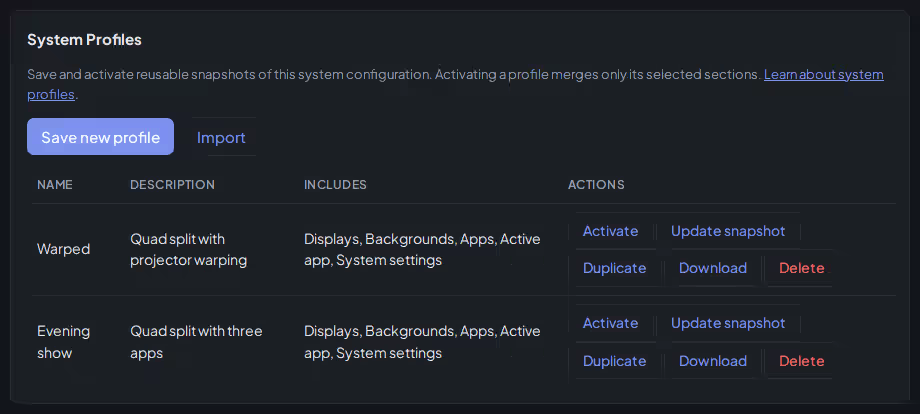
A system profile is a named snapshot of chosen parts of an appliance's configuration: its displays, backgrounds, apps, active app and settings. Save one for each show or room setup, then activate it to put that setup back, on the same appliance or on another one.
This page covers the System Profiles tab in the web UI. The Configuration reference describes the same features as API requests.
What a profile holds
A profile stores up to five sections. You choose which ones when you save it.
| Section | What it carries |
|---|---|
| Displays | Every output and the projection settings: mode, canvas, slices, warp pins, edge blending |
| Backgrounds | The named backgrounds and their wallpaper images |
| Apps | The app catalog: all of it, or the apps you choose |
| Active app | Which app is running |
| System settings | Daemon settings such as cursor hiding and the output poll interval |
Apps and Active app are separate. A profile can switch which app runs without touching the catalog, or bring in apps without changing which one runs.
A profile never holds bootstrap settings: the API token, bind address and state directory stay as each appliance has them. Saving a profile never changes the live system. Only activating one does.
Saving a profile
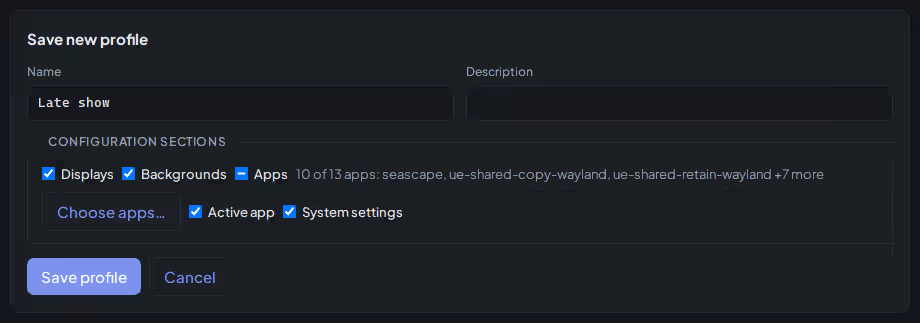
Choose Save new profile, give the profile a name, and check the sections
to include. Names must be unused. They are compared without case and without
leading or trailing spaces, so Demo and demo are the same name.
Choosing apps
The Apps checkbox has three states, and the text beside it says which one is in effect:
- Checked: every app in the current configuration is saved ("All 13 apps").
- Mixed (a dash): only the apps you chose are saved ("10 of 13 apps", then the first few names).
- Unchecked: no apps are saved ("Apps are not saved.").
To save only some apps, choose Choose apps… and check the ones to keep. The list shows each app's launcher and where it points, and marks the active app. Select all and Select none set every box at once. Choosing every app is the same as the checked state.
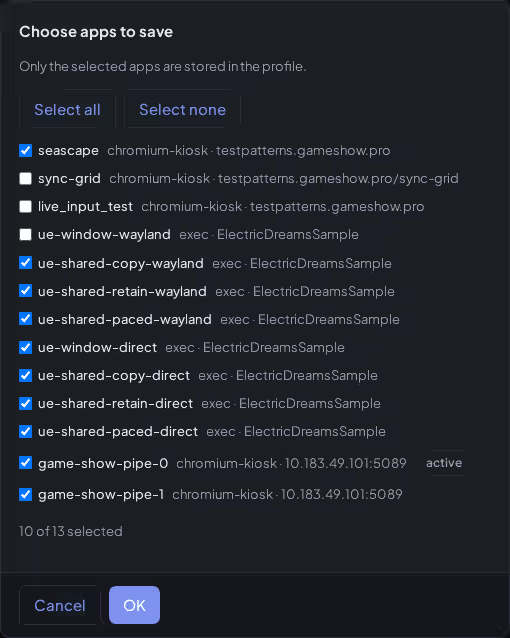
Clicking the Apps checkbox itself moves between all and none. From the mixed state it goes to all, then to none, then back to all. To get a subset again, use Choose apps….
When Active app is checked, the active app must be one of the saved apps. Otherwise the profile would name an app it does not carry, and activating it would fail every time. The editor says so under the sections and refuses to save. Choose the active app as well, or uncheck Active app.
Updating a snapshot
Update snapshot saves the current configuration over a profile, keeping its name unless you change it. The editor starts from the profile's own choices. For Apps, that means the apps the profile already stores that also exist on this system. Stored apps that are not on this system appear in the list grayed out and marked "not on this system": the updated snapshot will not include them.
Activating a profile
Activating writes the profile's chosen sections into the configuration and saves it. Before you activate, use the header's Save or Revert to deal with any unsaved edits. Activation never merges into a half-edited working copy.
Choosing sections
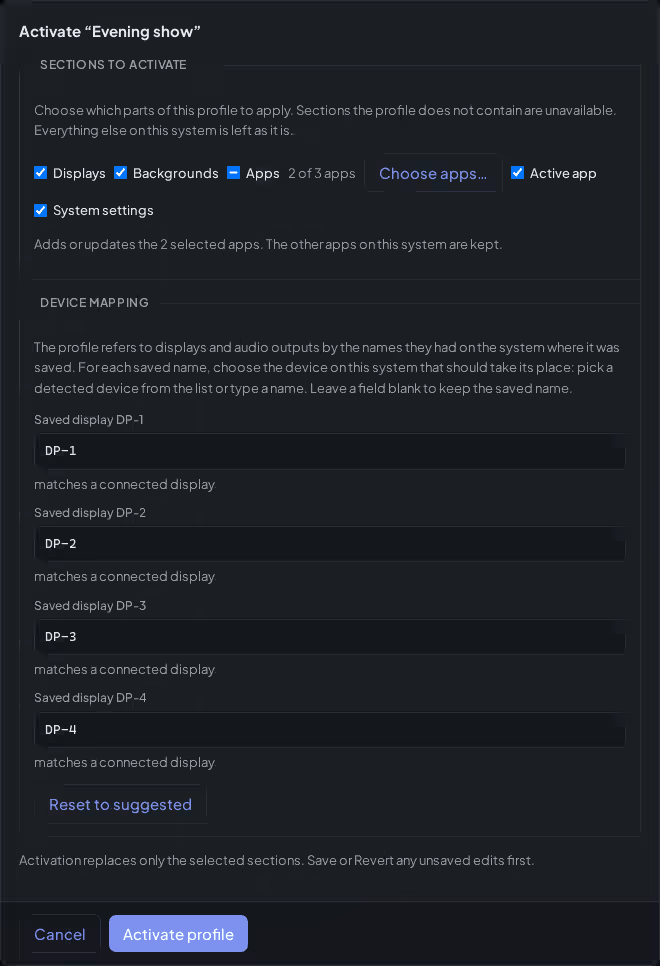
The Activate dialog lists the five sections. Every section the profile holds starts checked, so activating without changing anything applies the whole profile. Uncheck a section to leave that part of this system as it is. A section the profile does not hold is grayed out and marked "(not in this profile)".
Apps has the same three states as in the editor, and the line under it says what each will do:
- All: replaces this system's app list with the profile's apps. Apps that are only on this system are removed.
- Some (chosen with Choose apps…): adds or updates the chosen apps. Each one replaces the app with the same ID, or is added if there is none. The other apps on this system are kept.
- None: leaves this system's apps unchanged.
If Active app is checked and the profile's active app would not be in the resulting app list, the dialog says so and will not activate. Choose that app under Apps, or uncheck Active app.
Device mapping
A profile names displays and audio outputs as they were called on the system
where it was saved: connector names such as DP-1, display make, model and
serial, and PipeWire sink names. Another appliance, or the same one with
different cabling, may call them something else. Device mapping chooses, for
each saved name, the device on this system that should take its place.
Each row shows a saved display or audio output and a box for its replacement. Type a name, or open the list to pick a detected device. Display rows appear when Displays is checked. Audio rows appear for the audio outputs of the apps being applied.
When the dialog opens, every row is filled in for you:
- A saved display that a connected display matches, by connector and by any make, model and serial the profile recorded, gets that display. A saved audio output gets the detected sink with exactly the same name. The status under the row reads "matches a connected display" or "matches a detected audio output".
- Every remaining row gets the first detected device that no other row holds, in the order the appliance lists them. The status reads "suggested: the next unassigned display" (or audio output).
- When no device is left, the row stays blank and the status says the saved name is kept.
Reset to suggested puts every row back to these choices after you edit them.
A blank row keeps the saved name. That is useful for a display you will plug in later. If the device is still absent after activation, the configuration is saved anyway and the missing device is reported as a warning, as for any unplugged display. A row that matches its connected display sends no mapping at all, so the profile's make, model and serial rule stays as it was saved. Two saved displays cannot take the same display on this system; the dialog says so and will not activate.
Moving profiles between systems
- Download saves a profile as a JSON file. Wallpaper images the profile uses are embedded, so the file is self-contained.
- Import reads such a file and asks for a name before saving it. Importing never activates a profile or changes the configuration.
- Duplicate copies a profile under a new name, for example to make a variant.
When you activate an imported profile, device mapping fills in this system's displays and audio outputs, as described above.