Screenshots
These are captures of the bundled reference web UI, which the daemon serves at http://<machine>:9088/. Select any image to open it at full size. The Displays and System Profiles captures are taken with scripts/capture-screenshots.sh at 100% scale and the narrowest width that shows two columns; scripts/screenshots/README.md describes how to retake them.
Displays
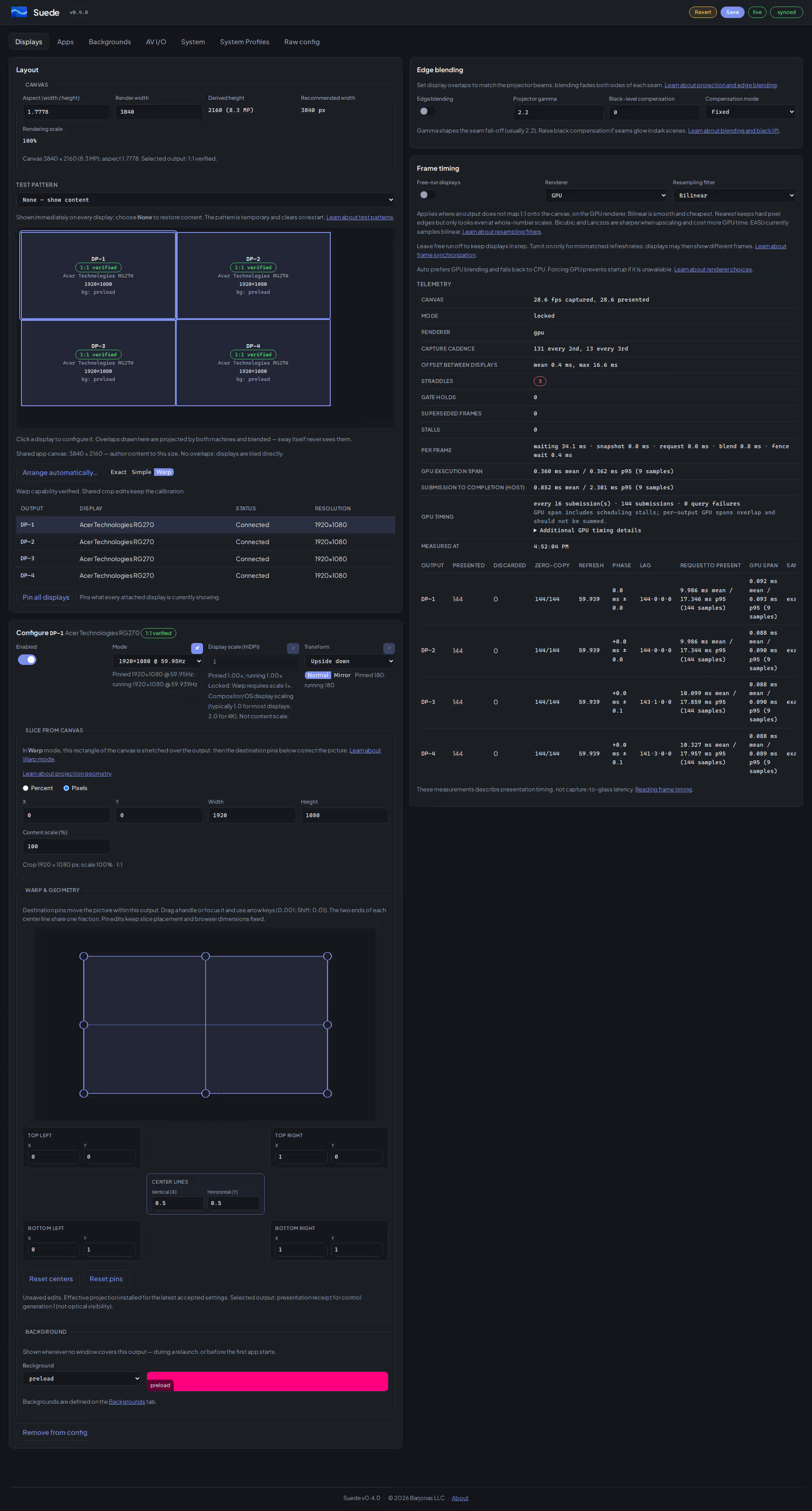
The Displays tab on a healthy system in Warp mode: the layout and canvas settings, the test pattern picker, a preview of the canvas with a 1:1 verified chip on each output, the Exact | Simple | Warp toggle, the outputs table, the edge blending and frame timing cards, and, for the selected output, its settings, the Slice from canvas panel and the Warp pin editor.
Read more: Projection modes, Projection and edge blending, The whole-number chip, Editing geometry in the web UI, Test patterns, Calibrate an overlapping or warped layout.
Arrange automatically in Exact
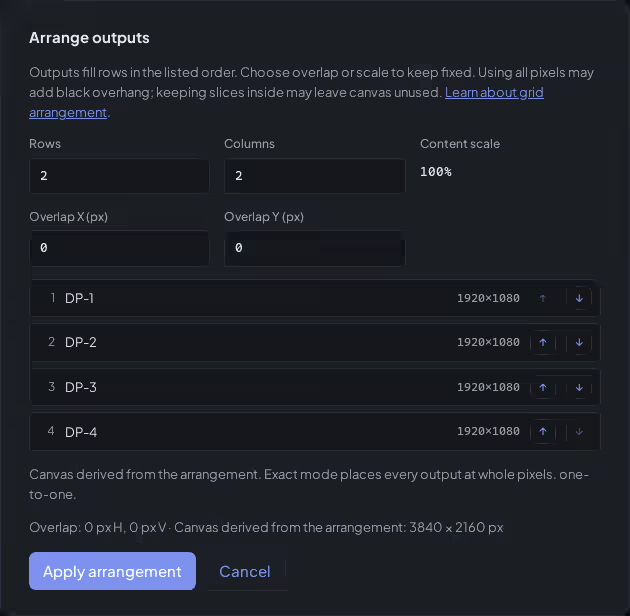
The Arrange automatically dialog in Exact mode. Overlaps are whole pixels, content scale is fixed at 100%, and the canvas is derived from the arrangement.
Read more: Arranging automatically in Exact.
Arrange automatically in Simple and Warp
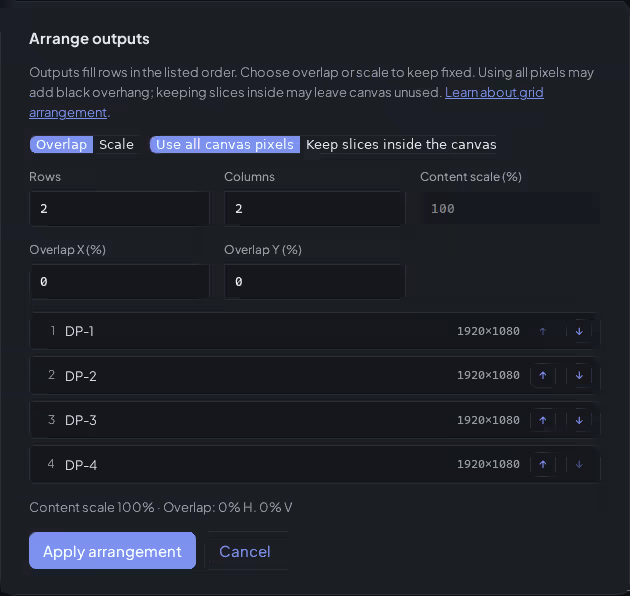
The same dialog in Simple and Warp. It chooses whether overlap or content scale is kept fixed and whether the arrangement uses all canvas pixels or keeps slices inside the canvas, and overlaps are percentages.
Read more: Arranging automatically in Simple and Warp, Grid arrangement.
Displays with nothing connected
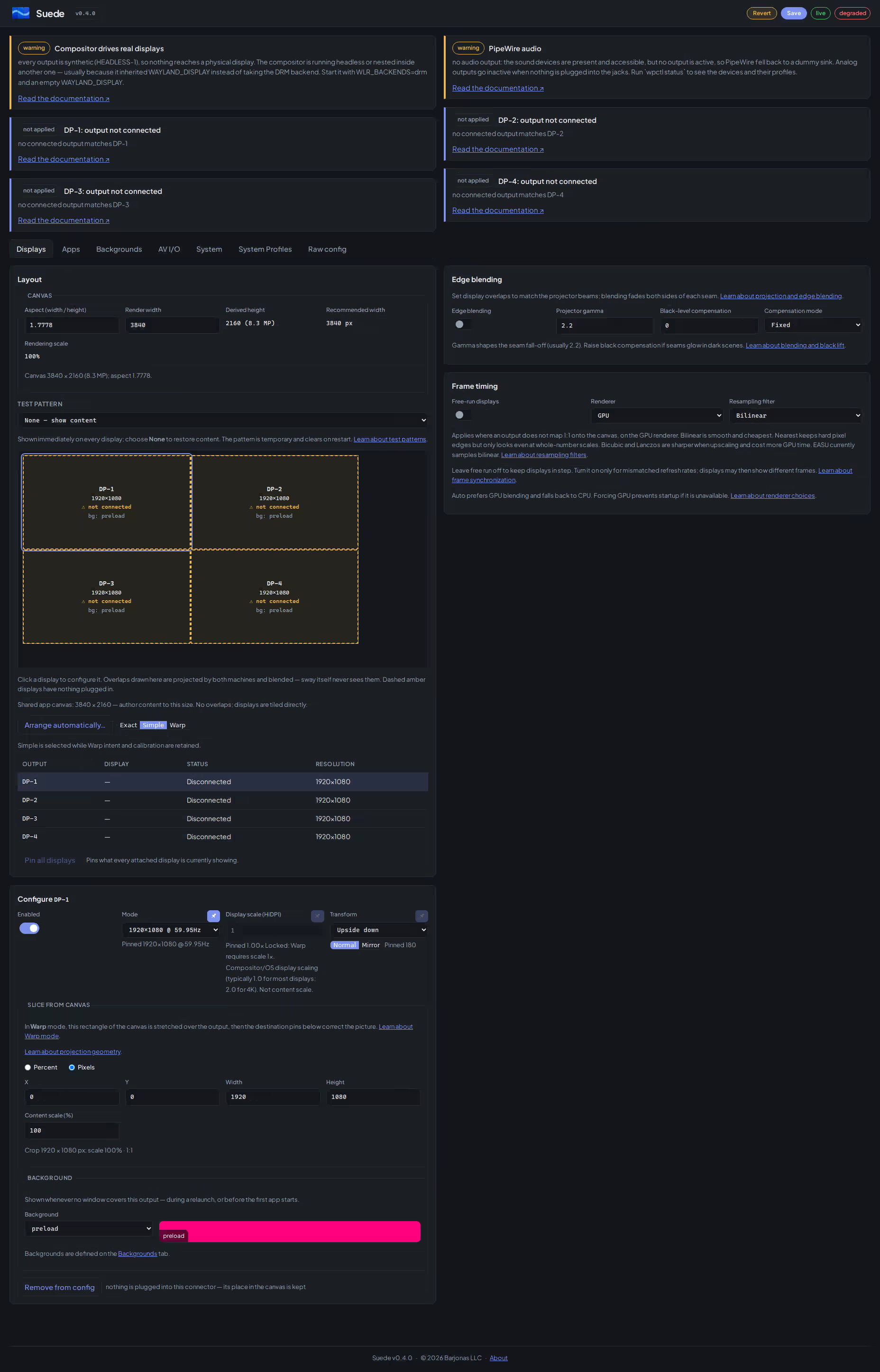
The same tab with every output unplugged. Warnings at the top explain what is unavailable, the preview shows each output as not connected, and the Warp intent and calibration are retained while Simple mode is in effect.
Read more: An unplugged display changes nothing else, How warnings reach you.
Apps
The Apps tab lists the managed applications and their state. The dialog is open on one of them, showing its launcher, URI, audio sink, content watchdog, readiness gate, the command and environment it will actually be launched with, and its capabilities.
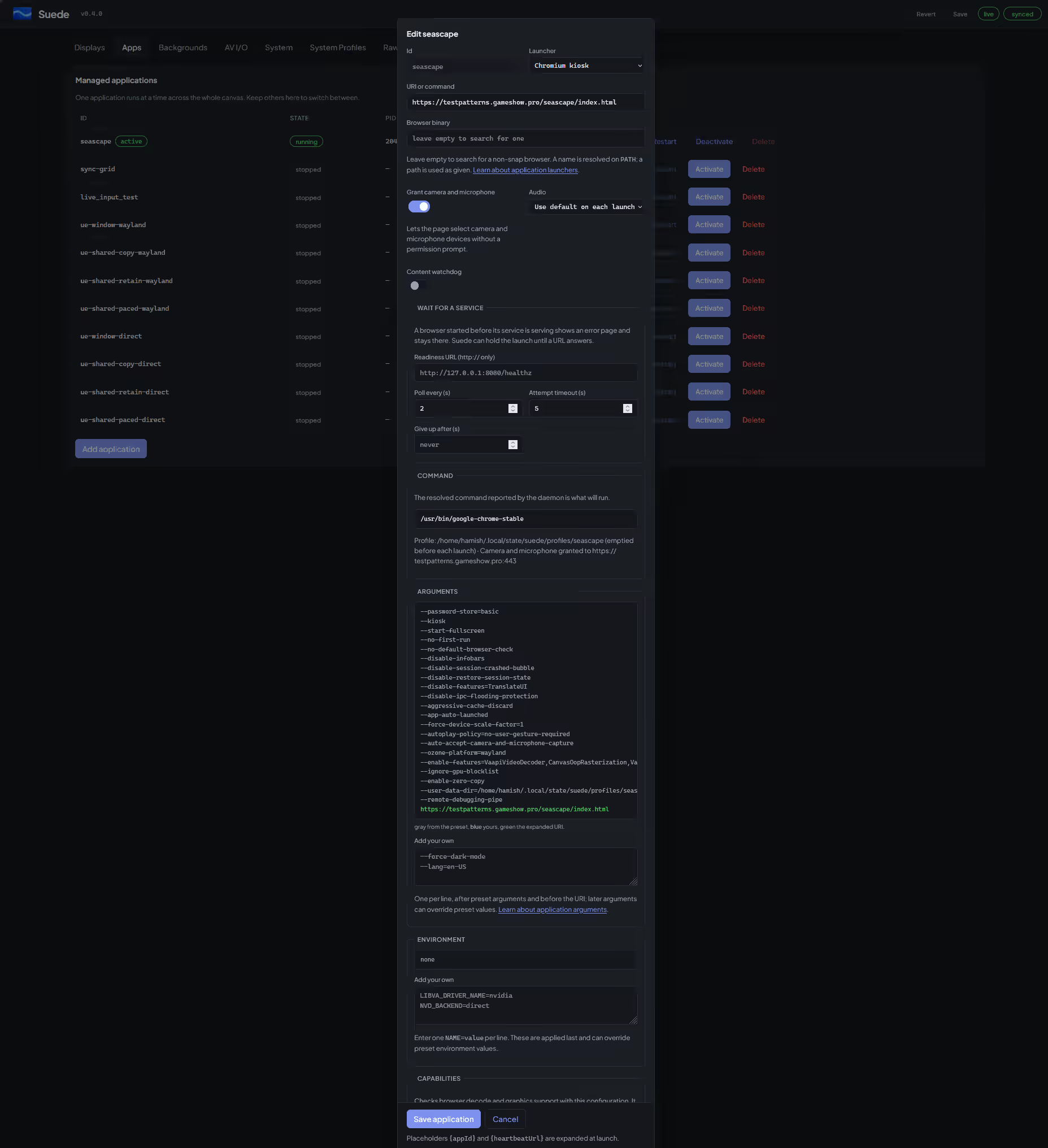
Read more: Applications, Launchers, Waiting for a service to be ready, Audio routing.
AV I/O
The AV I/O tab: audio outputs (PipeWire sinks with their stable identifiers and levels), audio inputs, and video capture inputs.
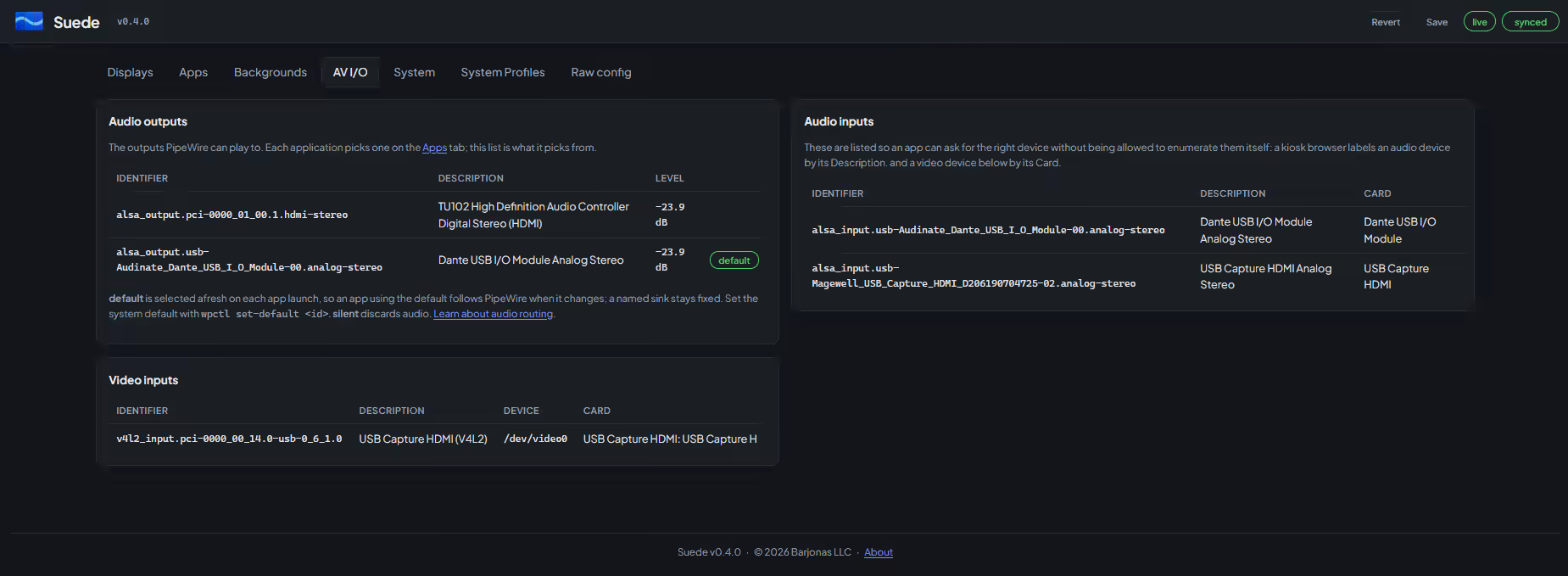
Read more: Audio routing, Audio goes to the wrong place, or nowhere, A page cannot reach a camera or capture device.
System
The System tab: facts about the host, the restart and shut down controls, the slicer pipeline chart, and the Chromium, GPU and CPU panels.
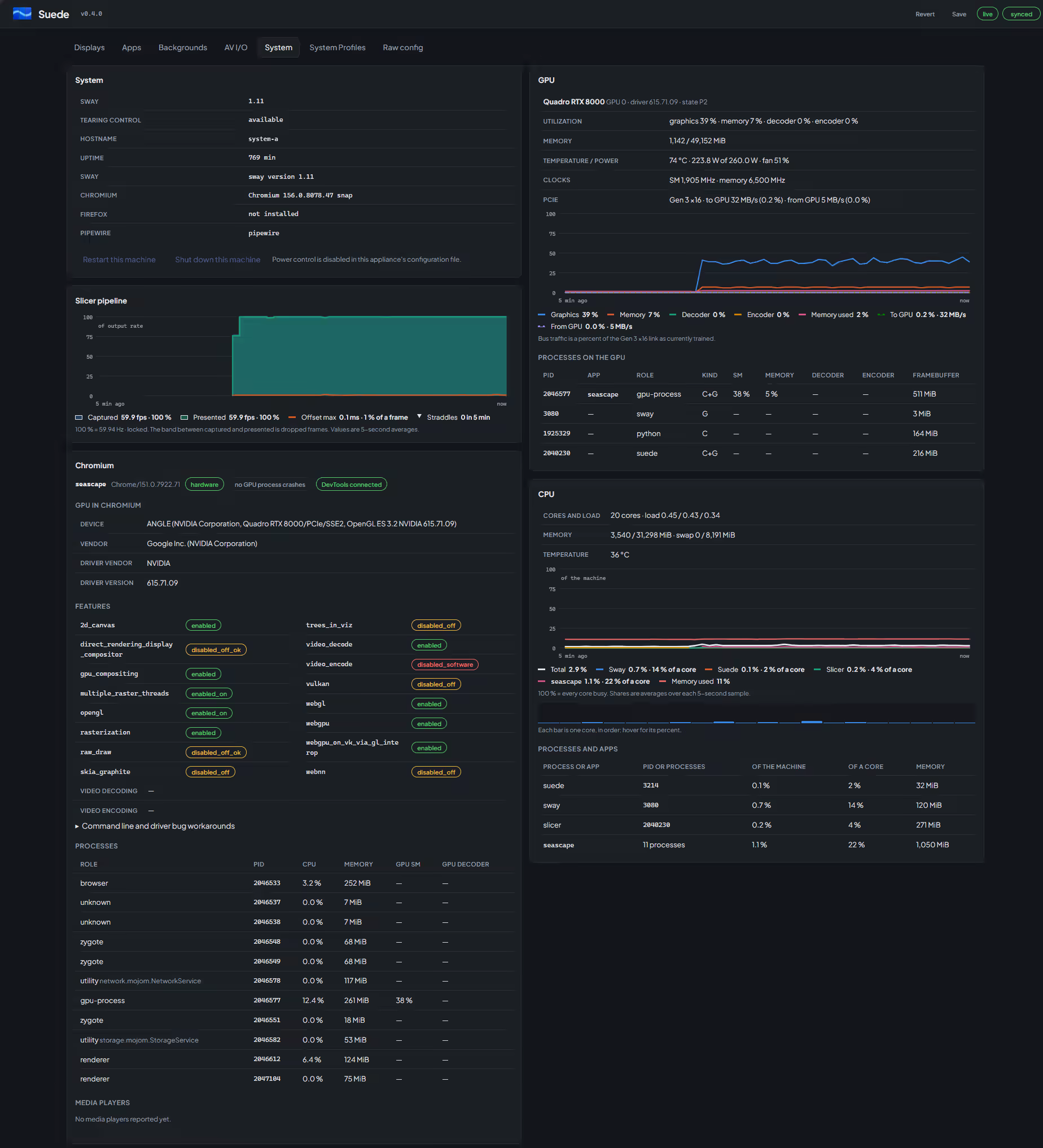
Read more: Reading frame timing, Reading the GPU and Chromium panels, Host power control.
Health checks
The list of health checks, here all passing. Each one links to its documentation.
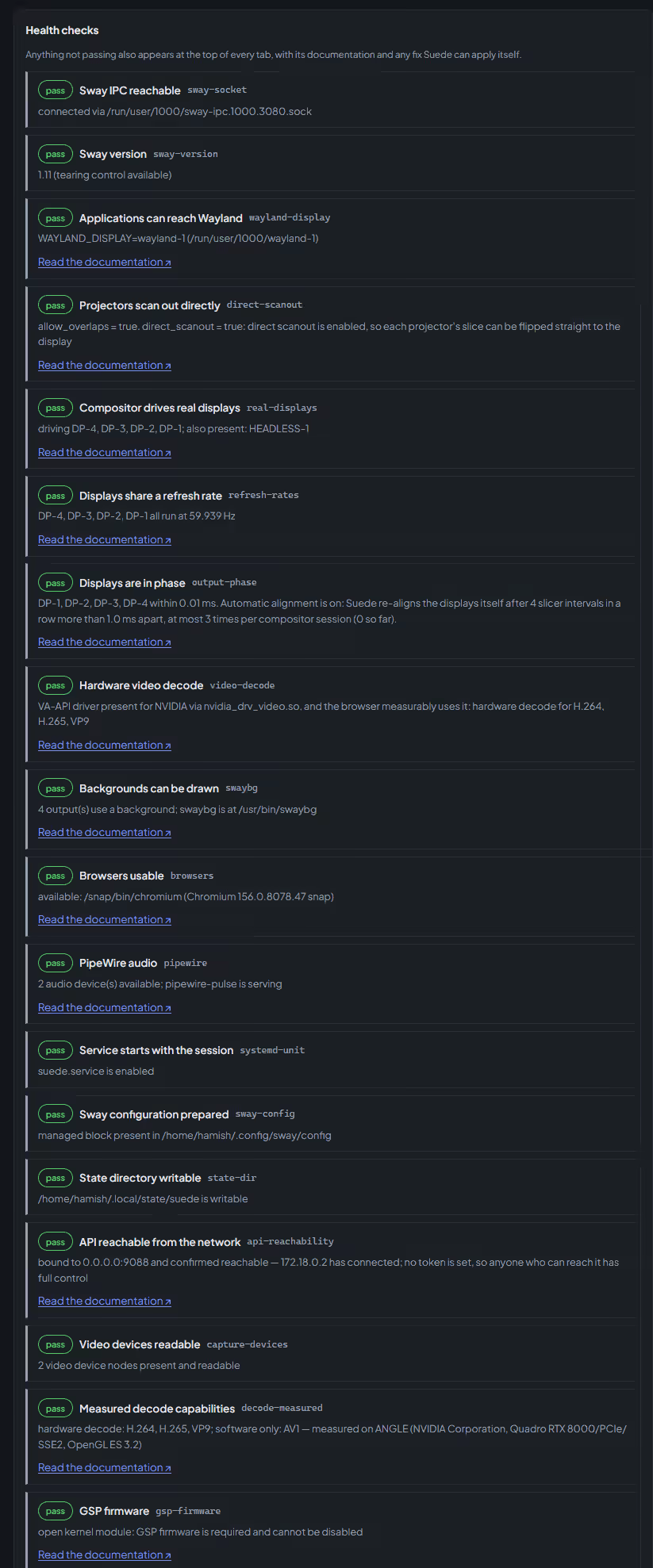
Read more: How warnings reach you, First run.
System Profiles
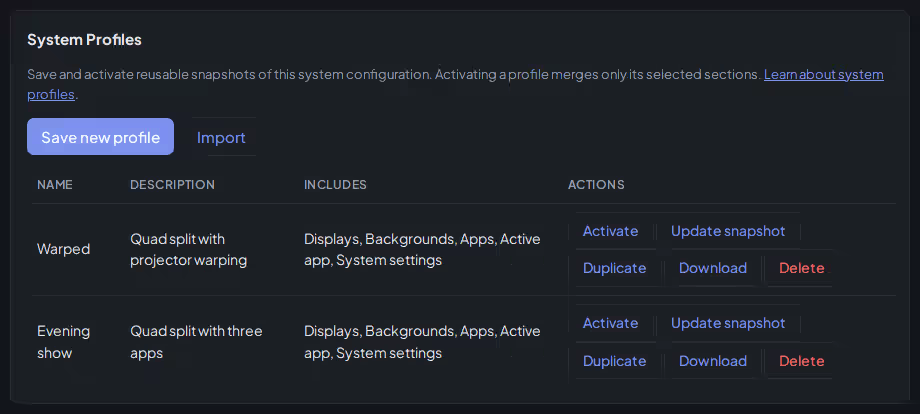
The System Profiles tab with two saved profiles, the sections each one includes, and the buttons to activate, update, duplicate, download and delete it.
Read more: System profiles, System Profiles API.
Saving a profile with some apps
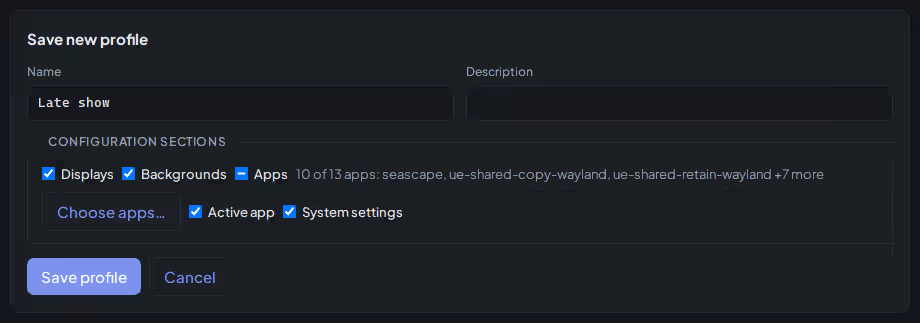
The Save new profile editor with the Apps checkbox in its mixed state: ten of the thirteen apps are chosen, and the summary names the first few.
Read more: Saving a profile, Choosing apps.
Choosing apps to save
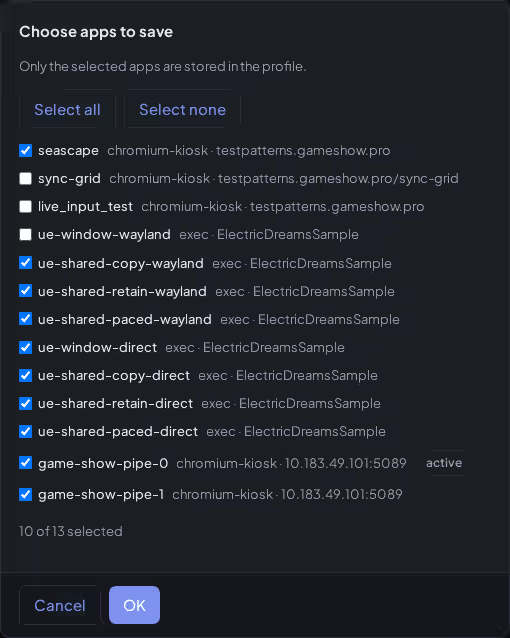
The app picker that Choose apps… opens, with each app's launcher and target, the active app marked, and a live count.
Read more: Choosing apps.
Activating a profile
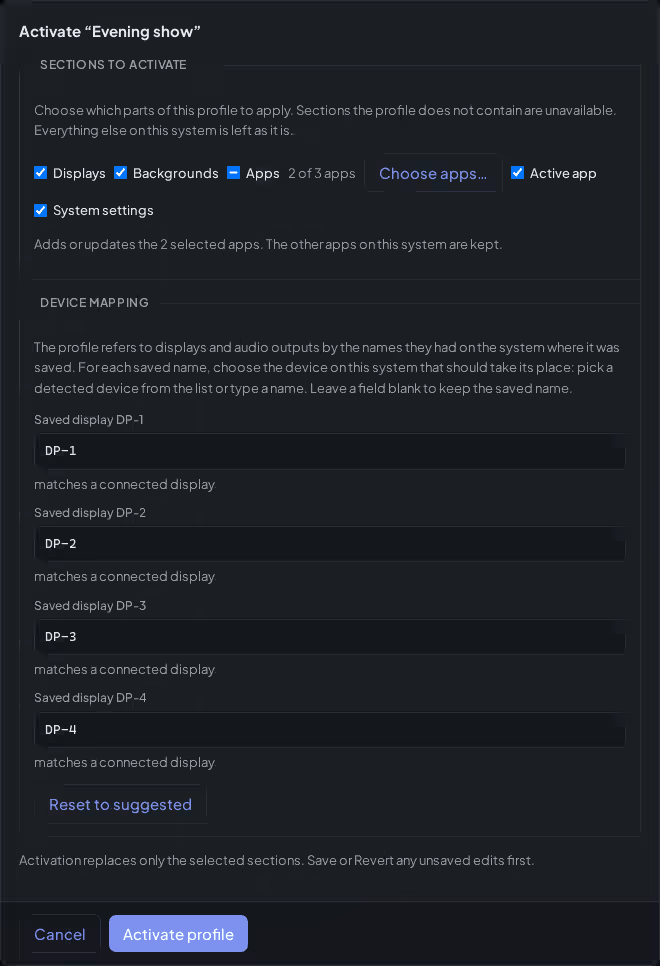
The Activate dialog: the sections to apply, with Apps narrowed to two of the profile's three apps, and a device mapping row for each saved display, each matched to a connected display.
Read more: Activating a profile, Device mapping.